okay. i added sounds now. =D
as i was going to say before, i was going to add a timer... but now, i'm going to add a score thingy. so everytime the sprite touches the green walls, it loses 2 points. but as you progress through the game, you get 2 points every few seconds. i'll try to get that done, but if i dont... its too hard to do . hahaha
Tuesday, December 8, 2009

maze game.
i dont remember the last time i posted... but since then, i did my game and finished doing it yesterday. =D
it works okay... nothing goes wrong with it and yeahh.
oh wait.. i havent added sounds yet..
it works okay... nothing goes wrong with it and yeahh.
oh wait.. i havent added sounds yet..
Friday, November 20, 2009
maze maze.
yesterday i decided to start my game thingy. and i decided to do a maze. since yesterday, i'm now up to level... 4? i just did level 3 a few minutes ago.
i also discovered how to use the broadcast thingy. but ever since then, i've been getting confused with stuff. =="
it takes around 5 minutes to figure out what to do next. so now... i guess i'll do level 4. =]
i also discovered how to use the broadcast thingy. but ever since then, i've been getting confused with stuff. =="
it takes around 5 minutes to figure out what to do next. so now... i guess i'll do level 4. =]
Wednesday, November 18, 2009
i figured it out~
sooo... instead of doing the snake game thingy, i've decided to do a maze thingy. where it starts off reallly easy, then it gets harder and harder. i might add more to it.... but it's only supposed to be a short game right? i might add something like... you have to collect stuff then go to the gate or door thingy to end it? i dunno. something like that. i'm using one of the projects on scratch already, as a guide to how they did their maze thingy.but the algorithm looks hard T___T so i'll jsut improvise ! and yeah.
anywayyyyyy... i have my piano exam in 3 hours T___T i'll be leaving school early, at the beginning of lunch... and yeahh. great... piano exam T___T
anywayyyyyy... i have my piano exam in 3 hours T___T i'll be leaving school early, at the beginning of lunch... and yeahh. great... piano exam T___T
Tuesday, November 17, 2009
okaaay...
i seriously need to start my game. i haven't even figured outt what game i'm gonna make T__T
i was thinking of doing snake... and yeah.. that should be easy... but i wanna make a fun game too. so yeah... if i can't think of anything to do.. then i'll make a snake game thingy.
i was thinking of doing snake... and yeah.. that should be easy... but i wanna make a fun game too. so yeah... if i can't think of anything to do.. then i'll make a snake game thingy.
Wednesday, November 11, 2009
glide.

this tutorial.... i chose gobo ! and... i gave it this code thingy. it wasnt meant to be looped forever, but i like it that way =] when you click the flag thingy, it glides across the screen.
interactive whirl.
this tutorial... i got lost when i first started it. then i finally figured it out . haha . anyway, pick a sprite. i stuck with an old lady. and insert this code with the sprite. when you move the mouse on the sprite, it whirls. haha

dance twist.
 i decided to do something simple instead of the challenge today. cause i'm too lazy to do something harder. i'm so tired T___T we just had the science and maths exams. and i almost got a headache =="
anyway, the tutorial i did is called dance twist, and you pick a sprite. i chose a person. and you set this code for the sprite. on my sprite, the thing that whirled was the persons face....
Monday, November 9, 2009
challenge 4
using the code thingy from challenge 3, i just added the "change size by 10" after the wait. and it changes the size of the sprite so it looks like its flying towards you.

challenge 3
this one was easy cause i've done this before. so i got the bat sprite with the wings up and the other one with the wings down. and made it fly by switching the costumes and waiting for 0.3 seconds.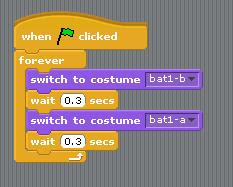

challenge 2
this challenge... i had to have two sprites move around the screen randomly, and when they touch, something happens to them. i had a dog and an elephant and when the elephant touches the dog, it disappears. and when the dog touches the elephant it changes costumes.

challenge 1
this took me a while to do == but i eventually got it anyway.

it glides... then when it touches the edge it bounces off it and goes the other direction.

it glides... then when it touches the edge it bounces off it and goes the other direction.
Friday, November 6, 2009
moving animation.


Tuesday, November 3, 2009
keep score.
the fourth tutorial - keep score.
this one....
you pick a sprite. i picked what was in the tutorial, a shark. then you pick another one. a fish.
 then you create the code. i dont think i can explain it much...
but. like before :
yellow = control.
blue = motion.
the orange one is in variables. and the green one is in... numbers.
ohhh, the light blue one is in....sensing.
and yeahh.....
key moves.
so this is the third tutorial i'm going to do.
key moves. first, you pick a sprite like you always do. then you create the code thingy. 

you find the yellow ones, in the yellow tab - control.
the blue ones are in the blue tab - motion.
you can pick how many steps it will take. and the direction it will go.
Wednesday, October 28, 2009
follow the mouseeee.
i did the follow the mouse tutorial before. soo... basically i did...
first i chose a thingy.. sprite thingy. a cat.
then... i made the code thingy.
which is....

and then... yeah. when the green flag thingy is clicked, then the cat or whatever follows the mouse. =]
Monday, October 26, 2009
windows 7
i'm so not bothered doing work =="
it's so quiet .... why are we working in silence....
anyway... i guess i have to do the work anyway =="
1. What versions is Windows 7 available in?
Starter, Home Premium, Professional, Ultimate, OEM, and Enterprise.
2. Describe some of the features of the new task bar.
They use large easy-to-see icons which makes it easier for people with touch screens.
3. What are jump lists and how will they be useful?
Jump lists make it easier to get to recently opened documents. If you have opened the internet, jump lists will open up recently viewed websites.
4. How can one quickly size two windows to fill the desktop side by side?
Drag a program window to the left and one to the right, and it will automatically resize the windows to equal size so it fills the desktop.
5. Research and describe the 9 multi-touch gestures that Windows 7 uses.
ummm... i'll answer that later.
6. What is XP mode? What users would find this feature most useful? Would it be useful?
XP mode creates a virtual environment, where you can access programs that haven't been updated to be able to use in Windows 7.
7. What feature related to removable drives has Windows 7 removed in a bid to increase security?
i can't find the answer.... T___T wait. i found it.
They will no longer Autorun removable hard drives and USB keys. This will kill off malware infections and increase security.
8. What are the minimum hardware requirements for Windows 7?
The minimum hardware requirements for Windows 7 is:
Processor - 1 GHz
RAM - 1 GB (32-bit) 2 GB (64-bit)
Support for directX 9 graphics device with 128 MB of memory
HD - 16 GB (32-bit) 20 GB (64-bit)
9. What observations does the article offer regarding performance for Windows 7?
Windows 7 feels faster than Vista and Windows XP, but it is actually the slowest out of the three systems.
it's so quiet .... why are we working in silence....
anyway... i guess i have to do the work anyway =="
1. What versions is Windows 7 available in?
Starter, Home Premium, Professional, Ultimate, OEM, and Enterprise.
2. Describe some of the features of the new task bar.
They use large easy-to-see icons which makes it easier for people with touch screens.
3. What are jump lists and how will they be useful?
Jump lists make it easier to get to recently opened documents. If you have opened the internet, jump lists will open up recently viewed websites.
4. How can one quickly size two windows to fill the desktop side by side?
Drag a program window to the left and one to the right, and it will automatically resize the windows to equal size so it fills the desktop.
5. Research and describe the 9 multi-touch gestures that Windows 7 uses.
ummm... i'll answer that later.
6. What is XP mode? What users would find this feature most useful? Would it be useful?
XP mode creates a virtual environment, where you can access programs that haven't been updated to be able to use in Windows 7.
7. What feature related to removable drives has Windows 7 removed in a bid to increase security?
i can't find the answer.... T___T wait. i found it.
They will no longer Autorun removable hard drives and USB keys. This will kill off malware infections and increase security.
8. What are the minimum hardware requirements for Windows 7?
The minimum hardware requirements for Windows 7 is:
Processor - 1 GHz
RAM - 1 GB (32-bit) 2 GB (64-bit)
Support for directX 9 graphics device with 128 MB of memory
HD - 16 GB (32-bit) 20 GB (64-bit)
9. What observations does the article offer regarding performance for Windows 7?
Windows 7 feels faster than Vista and Windows XP, but it is actually the slowest out of the three systems.
Friday, October 23, 2009
scratch tutorials
okay... i started off with the change color tutorial.
the tutorials are pretty easy,
for this one, all you do is choose a sprite thingy.
then you make the code. which is.... when space key pressed (or any other key), the sprite changes the colour effect by 25. i dont know what the 25 is for.... but it changes the colour anyway. i think you can change the number and theres a more variety of colours to change from?
well anyway.... i just forgot what i was gonna write... =="
the bell is gonna go soon... wait.. its supposed to go. but there are no bells . haha
the tutorials are pretty easy,
for this one, all you do is choose a sprite thingy.
then you make the code. which is.... when space key pressed (or any other key), the sprite changes the colour effect by 25. i dont know what the 25 is for.... but it changes the colour anyway. i think you can change the number and theres a more variety of colours to change from?
well anyway.... i just forgot what i was gonna write... =="
the bell is gonna go soon... wait.. its supposed to go. but there are no bells . haha
Wednesday, October 21, 2009
flowcharts
a flow chart is a diagram. which presents an algorithm.
this flowchart is about software development.
you start the process with the designing of the software. then you move on to the coding which you then test.
you will then check if there are any errors in the design or the coding. if not, then the software is complete.
if there are errors, you will then have to check whether the errors are from the design or the coding. if it isn't a design error, then you must go back before the coding and work from there.
if it's a design error then you have to go back to the start and the process keeps going.
this next flowchart is something about temperature.
when it starts, it reads the temperature.
then it starts the desicion making. if the temperature is below 32, then it prints "below freezing" .
if the temperature isn't below 32, then it prints "above freezing". then the flowchart ends.
the last flowchart is about some switch.

it starts off by asking, is the switch on?. if it isnt it goes back to the beginning until it is turned on.
once it is on, the LED should be turned on. then it starts the timer.
then it asks another question - has 1 second expired?.
if it hasnt, then it goes back to just after the starting of the timer.
if it has, then you turn off the LED, then reset the timer, and the flowchart finishes.
this flowchart is about software development.

you start the process with the designing of the software. then you move on to the coding which you then test.
you will then check if there are any errors in the design or the coding. if not, then the software is complete.
if there are errors, you will then have to check whether the errors are from the design or the coding. if it isn't a design error, then you must go back before the coding and work from there.
if it's a design error then you have to go back to the start and the process keeps going.
this next flowchart is something about temperature.

when it starts, it reads the temperature.
then it starts the desicion making. if the temperature is below 32, then it prints "below freezing" .
if the temperature isn't below 32, then it prints "above freezing". then the flowchart ends.
the last flowchart is about some switch.

it starts off by asking, is the switch on?. if it isnt it goes back to the beginning until it is turned on.
once it is on, the LED should be turned on. then it starts the timer.
then it asks another question - has 1 second expired?.
if it hasnt, then it goes back to just after the starting of the timer.
if it has, then you turn off the LED, then reset the timer, and the flowchart finishes.
Tuesday, October 20, 2009
creating computer programs.
it's the second day of the last term... i'm so tired ==" i didnt want to wake up this morning.
anyway.... definitions..
1. algorithms - this is the thing used to complete something on the computer. it tells the computer what to do, the way you want to, and how it's going to do it.
2. pseudocode - kind of like the shortcut to describing a computer program.
3. machine language - programming language where instructions are in binary code of the computer.
4. high level comupter language - something like C, Fortran and Pascal ? these are considered high level because they are closer to human languages and not machine languages.
5. flowchart - these are used in complex situations. example; used in a programming code or troubleshooting a computer.
6. flowchart symbols used for :
~ beginning and ending a set of instructions - ovals or rounded rectangles
~ decision making - a diamond looking thing
~ a process or action - a rectangle.
anyway.... definitions..
1. algorithms - this is the thing used to complete something on the computer. it tells the computer what to do, the way you want to, and how it's going to do it.
2. pseudocode - kind of like the shortcut to describing a computer program.
3. machine language - programming language where instructions are in binary code of the computer.
4. high level comupter language - something like C, Fortran and Pascal ? these are considered high level because they are closer to human languages and not machine languages.
5. flowchart - these are used in complex situations. example; used in a programming code or troubleshooting a computer.
6. flowchart symbols used for :
~ beginning and ending a set of instructions - ovals or rounded rectangles
~ decision making - a diamond looking thing
~ a process or action - a rectangle.
Subscribe to:
Posts (Atom)